📖 User Guide
Step-by-step guide for representatives and dojang managers
Getting Started
1
Login
Log in with the email and password provided to you. After logging in, you will be automatically redirected to your management panel.
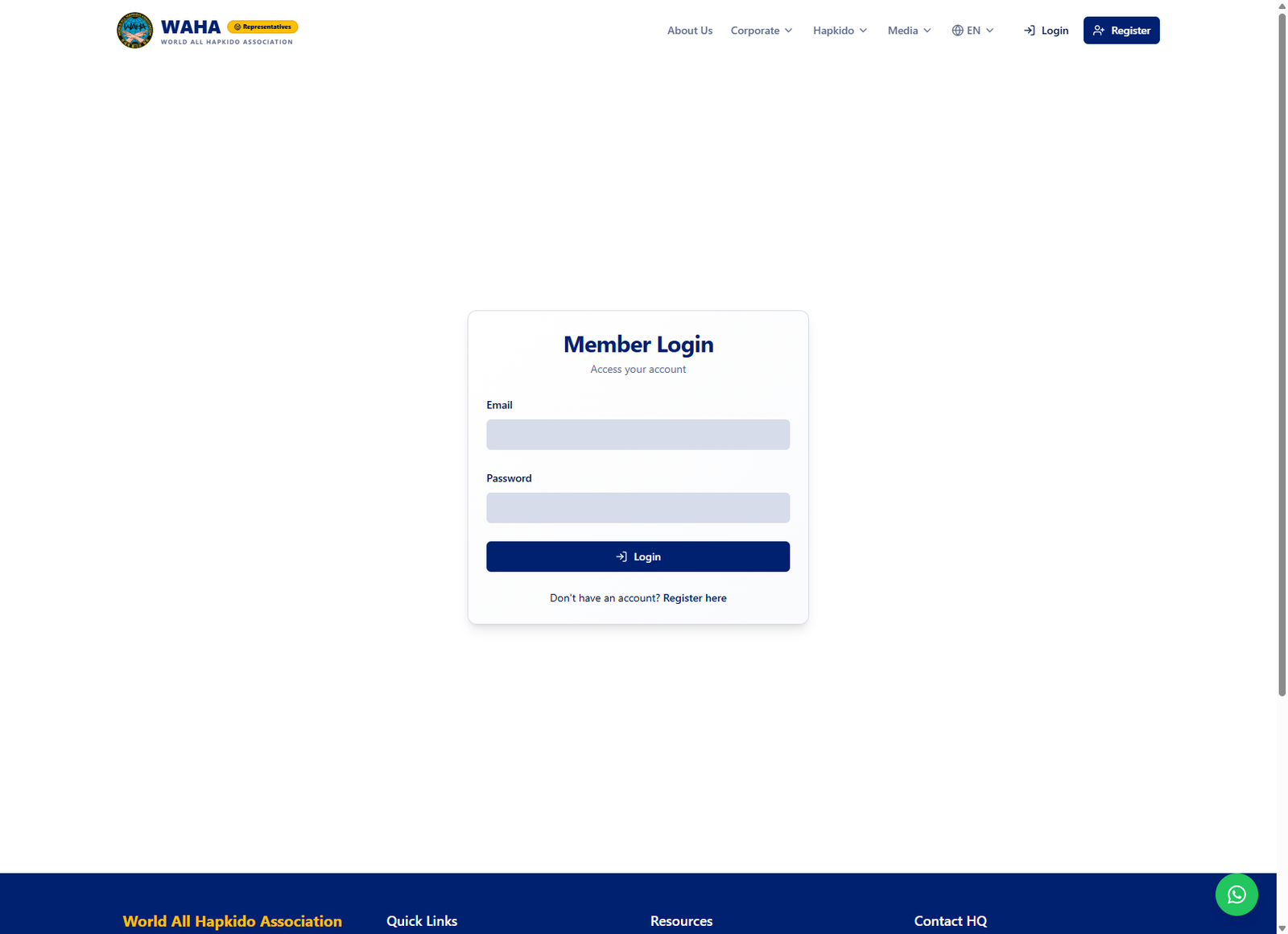
Tip: hapkidowaha.com/login
2
Dashboard
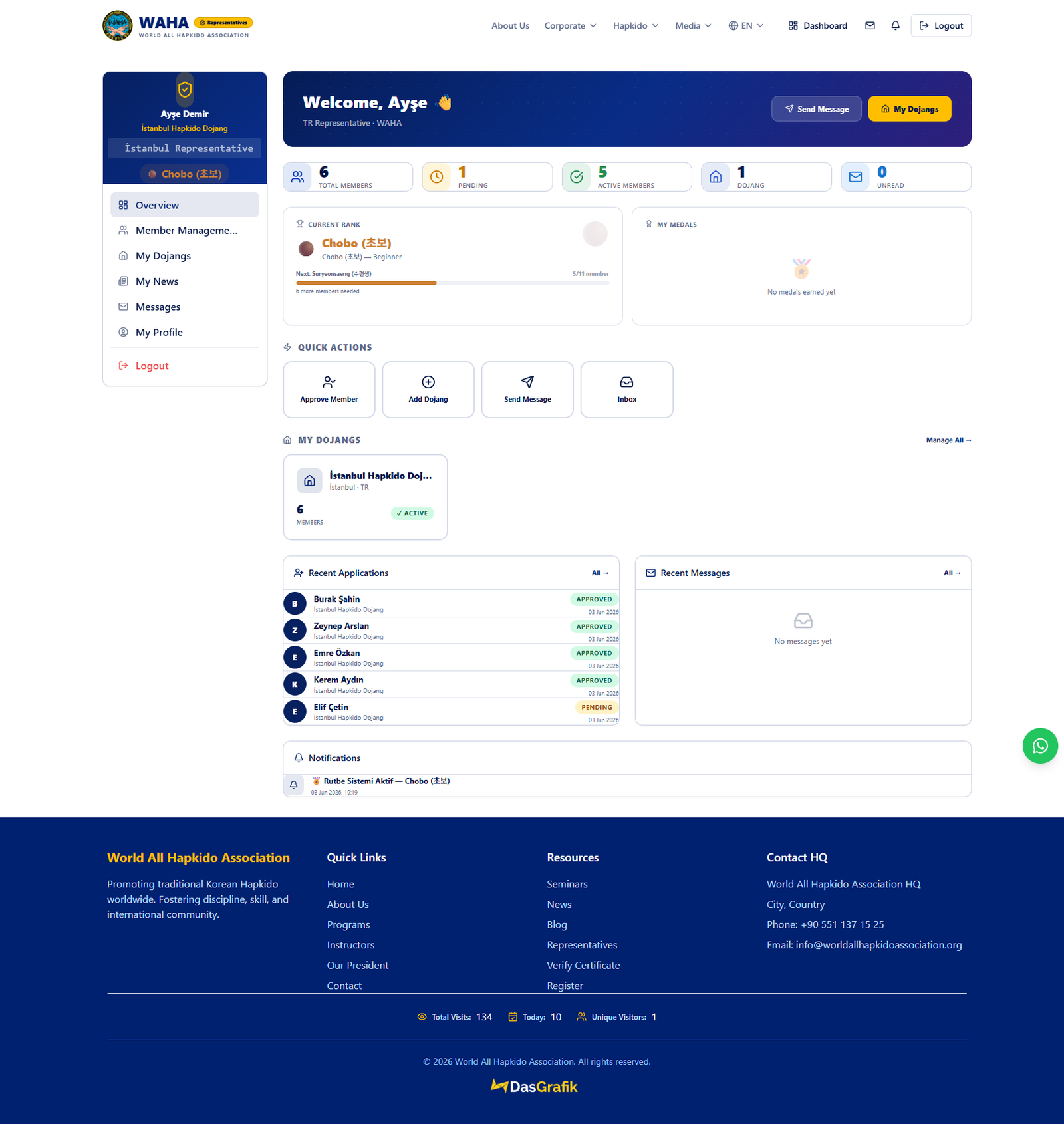
After logging in, you will see your dashboard. Here you can view total members, pending approvals, your dojangs, and recent messages.
Management
3
Dojang Management
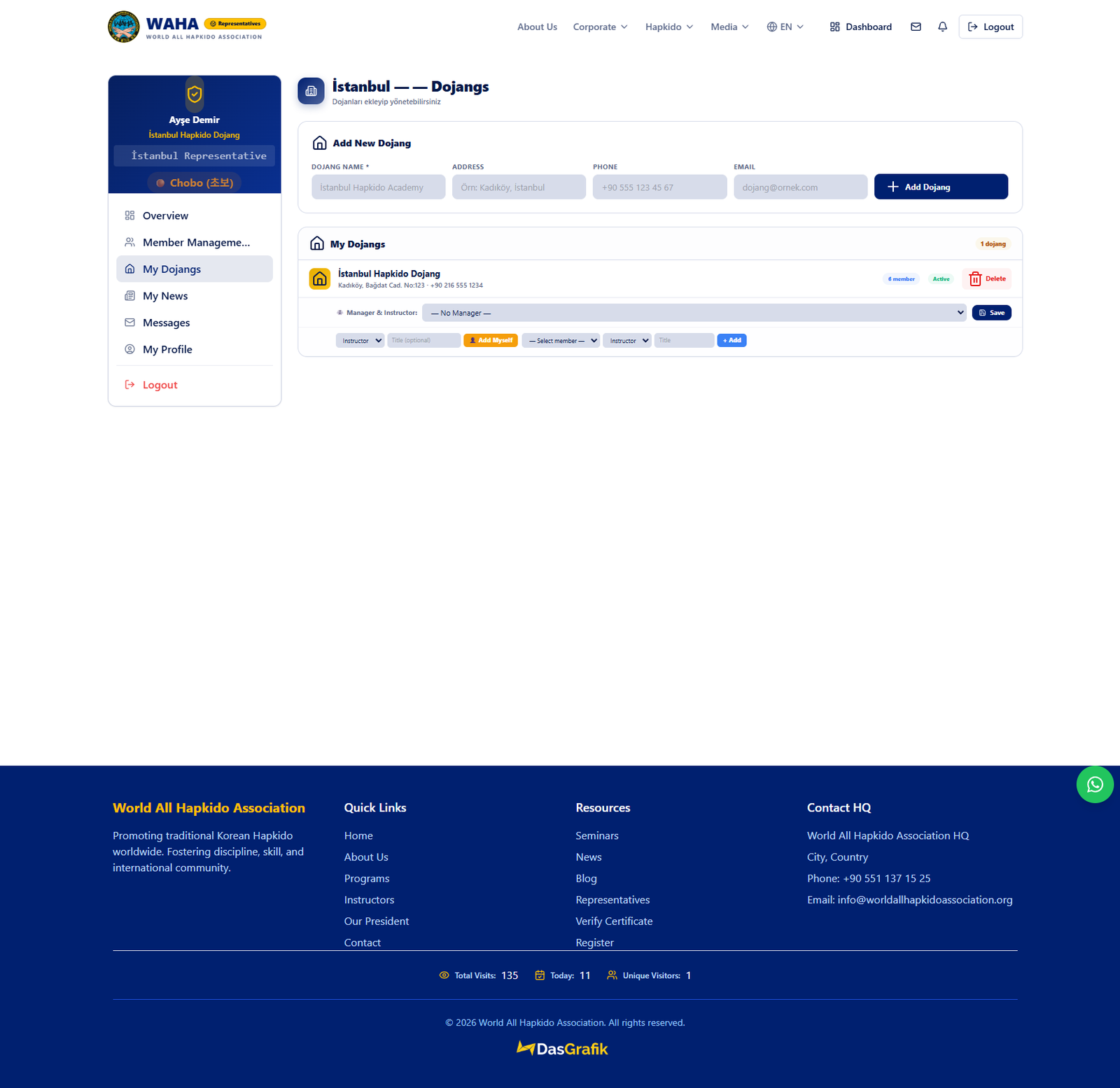
As a city representative, you can add and manage dojangs in your city. Enter the dojang name, address, phone, and email.
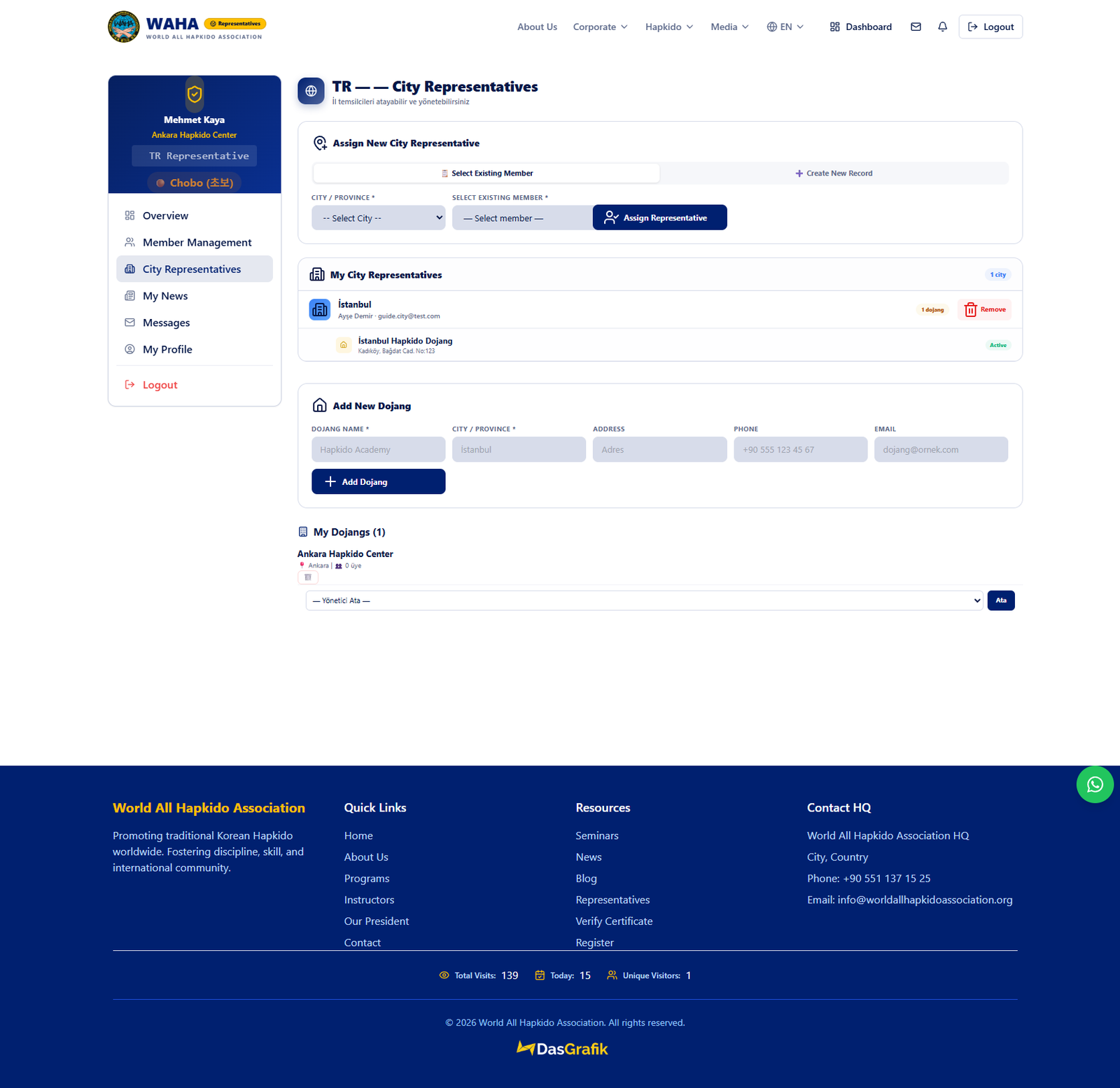
Tip: As a country representative, you can assign city representatives and add dojangs. You can select from existing members or create a new representative.
Country Representative — Dojang Management
Student Operations
4
Member / Student Management
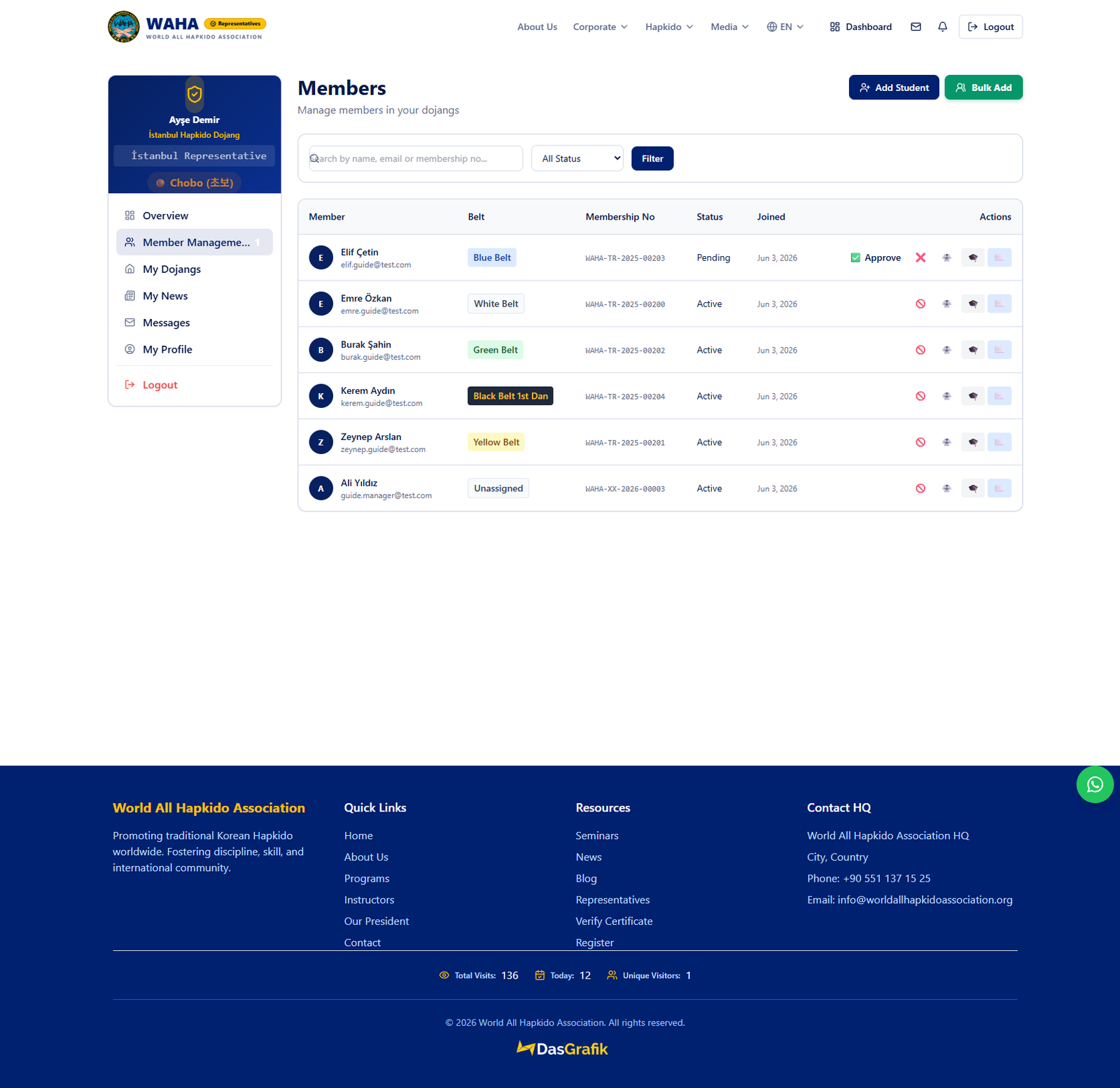
View, approve, or add new students. You can add them individually or in bulk.
5
Add Single Student
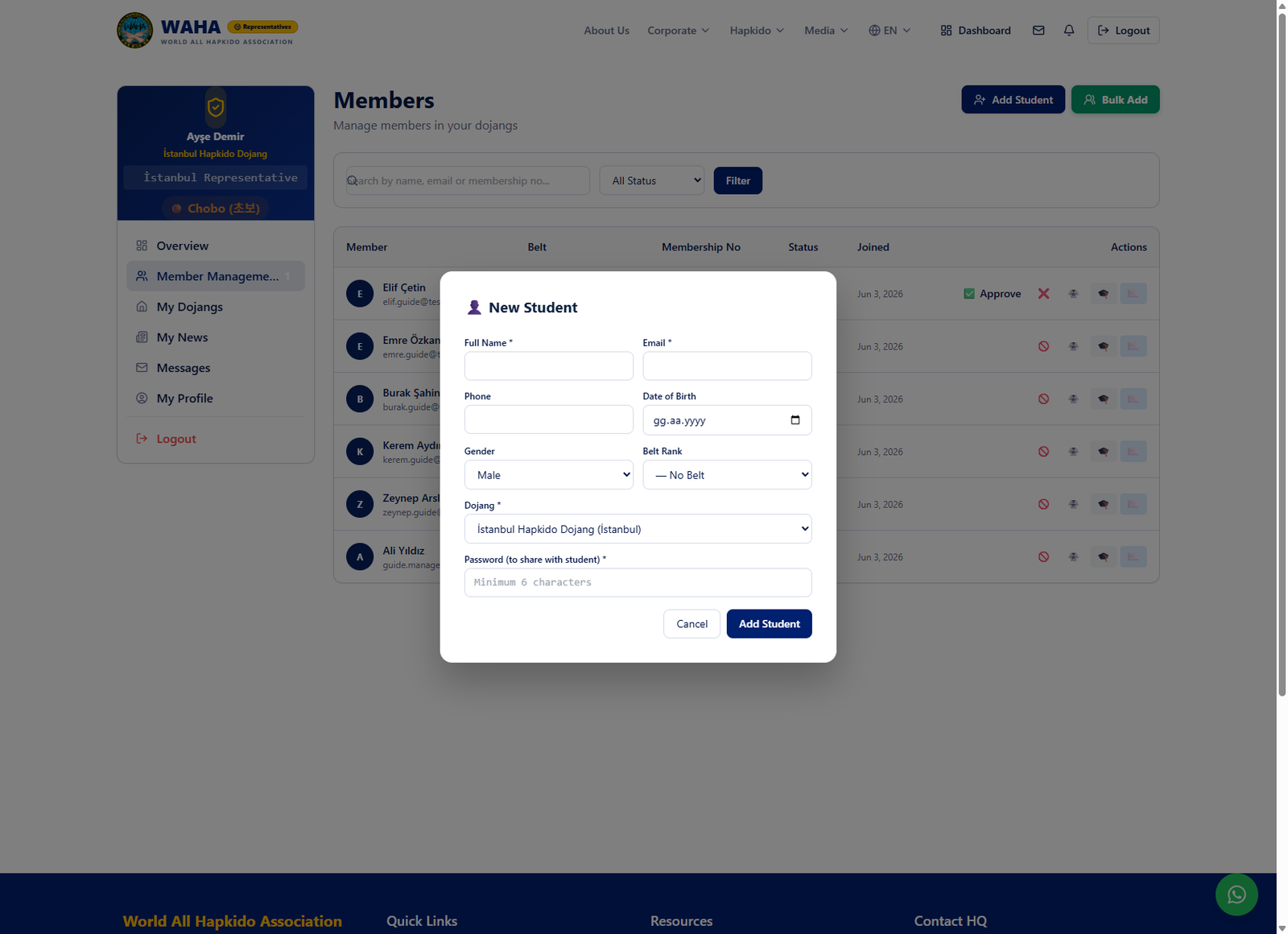
Click the "Add Student" button. Enter name, email, phone, date of birth, gender, belt rank, and dojang. Set a password.
6
Bulk Add Students
Click "Bulk Add". Fill in the spreadsheet form to add multiple students at once.
Tip: New registrations appear as "Pending". Click the green ✓ button to approve or the red ✕ button to reject.
7
Student Self-Registration
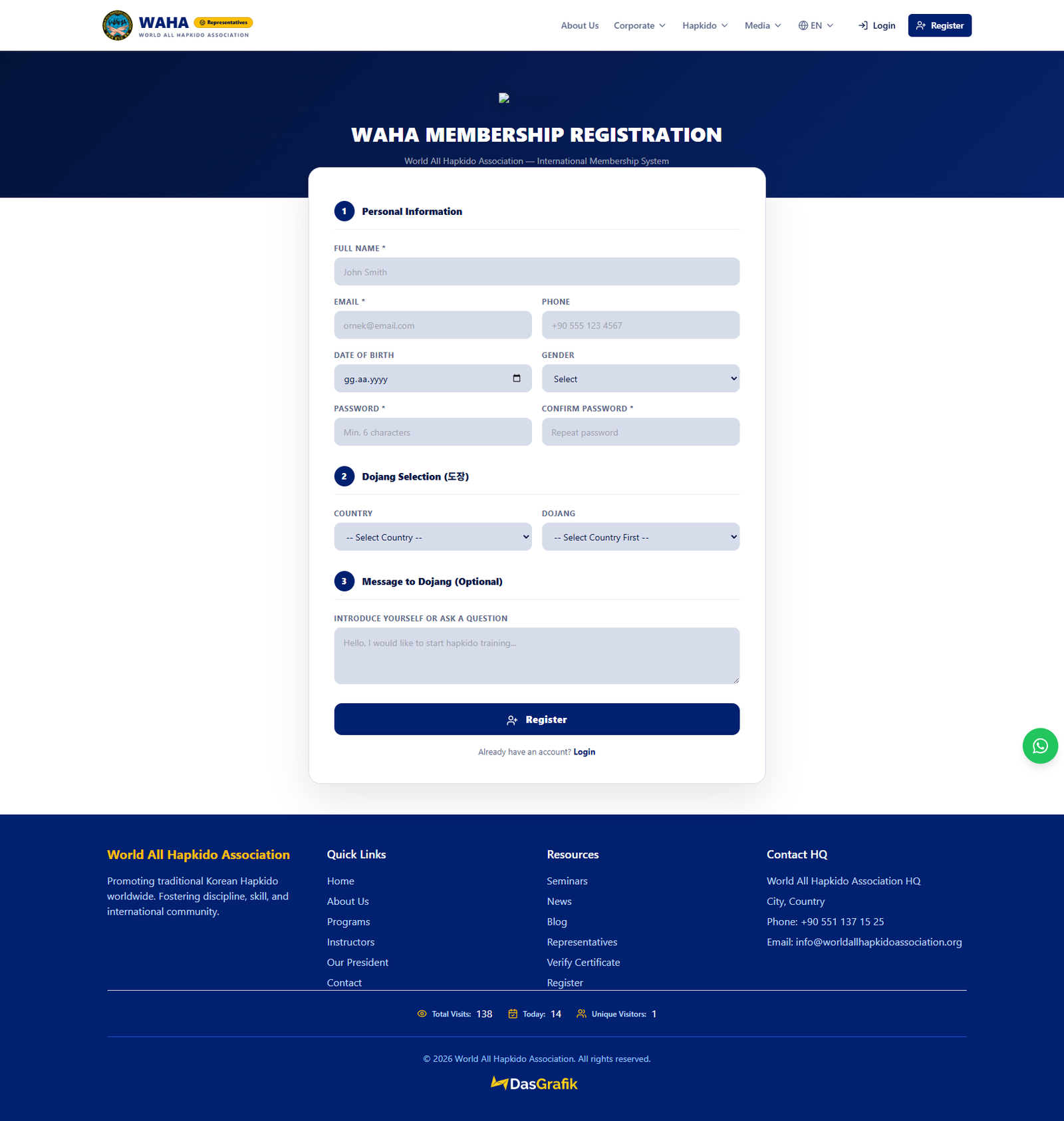
Students can also register themselves at hapkidowaha.com/register. They select their country and dojang, then wait for representative approval.
Roles & Permissions
Country Representative
Manages all city representatives and dojangs across the country. Can assign city representatives.
City Representative
Manages dojangs and students in their city.
Dojang Manager
Manages students in their assigned dojang.